 Agent Invo
Confirmed
Turn customer orders into QuickBooks invoices.
AgentInvo turns emails, texts, and photos of handwritten orders into invoice drafts. Review the details, resolve flagged items, and create the invoice in QuickBooks Online.
Juniper Coffee House
Order SAMPLE-1042 3 items
orders@juniper.exampleCustomer confirmed
Select any line to find it in the original. Try an edit, then confirm and approve.Tap a line to check its source. Confirm, then approve.
Source
EmailHi Northline,
For Juniper Coffee House:
Thank you!
Select a highlighted phrase to find its invoice line.
Review order
Source linkedLine itemsAmount
Confirmed
Check the grind: the order specifies whole bean. Confirm the selected catalog item.
Confirmed
Total$456.00
Sample approved
You checked the source and made the call. In the app, approval creates the QuickBooks invoice.
See it in 30 seconds.
From an incoming order to a draft, a quick edit, and approval in QuickBooks.
The video couldn’t load. Open the video directly or read the full transcript.
Read the transcript
You've already got the order. You shouldn't have to type it all in again. With Agent Invo, you can start with an email, a text, or a photo. It puts together a draft using your customers, your catalog, and your QuickBooks prices. Check it against the original order, adjust anything that needs changing, then approve it to create the invoice in QuickBooks. So you spend less time entering orders, and more time running your business. Book a demo to see it with your own orders.
Current app with fictional sample data and staged accounting responses.
The order stays familiar.
The work gets simpler.
Keep the original in view while AgentInvo prepares the details. Your team reviews what matters and sends the invoice to QuickBooks Online.
- 1
Receive the order
Bring in orders through configured email, a configured text number, or staff uploads.
- 2
Review the draft
Check the customer, products, quantities, and prices. Correct details and resolve flagged items.
- 3
Approve the invoice
When it is ready, approve creation in QuickBooks Online. See confirmation after it succeeds.
Orders arrive in
different formats.
Review them in one place.
A neatly typed email. A quick text. A photo of a handwritten list. Your customers don’t all order the same way.
AgentInvo gives your team a consistent review process across those inputs, with the original order available to check.
“4 bags House Blend, 5 lb.
2 bags Decaf, 5 lb.”
Text message
Sample order“Please send 6 cases of sparkling water,
24 × 12 oz cans.”
Photo or upload
Handwritten sample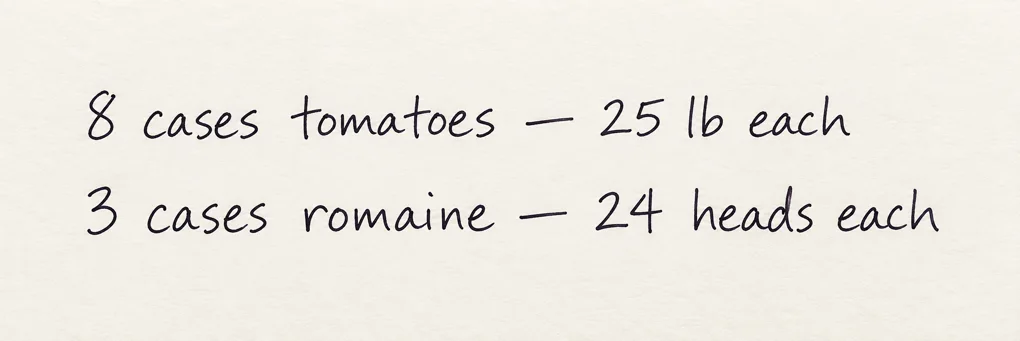 Upload a photo or send one through a configured channel.
Check the details.
Keep the original beside you.
Automation is useful when you can see what it did. Compare the source with the proposed invoice, then make the call.
Match the right records
Review the customer and products against your connected QuickBooks Online records.
Resolve the uncertainty
Open a line, adjust a match or quantity, and confirm details that need attention.
Know where it stands
A draft, a creation request, and a saved invoice are distinct states.
A clear path to
your first reviewed order.
Start with the way your business works. We’ll discuss your order formats, accounting setup, and when you need invoices created.
For QuickBooks Online.
Built for customer orders and sales invoices.
Check the fit together
Walk through your ordering and fulfillment process in a personal demo. Ask about the details that matter to your team.
Agree the setup
Plan the company connection, customer and catalog checks, incoming channels, and sample orders for your pilot.
Give your team a supported start
Work through review and approval with one-on-one support, then assess how AgentInvo fits your day.
A guided start.
A person in your corner.
Explore AgentInvo with a guided pilot and one-on-one support. Work through the details of your orders with someone who knows the product.
Request a demoBuilt around your workflow
- Discuss the formats your orders arrive in.
- Review your QuickBooks Online setup.
- Understand how your team will check drafts.
- Agree the scope of a pilot before you decide.
No checkout or account setup needed to request a demo.
The practical
questions.
Something else on your mind?
Get in touch.
Who is AgentInvo for?
Small and midsize wholesalers that receive customer orders in mixed formats and create sales invoices in QuickBooks Online. Coffee, food, and other wholesale businesses can explore whether the workflow fits.
Do I need QuickBooks Online?
Yes. AgentInvo matches orders against customers and products from your connected QuickBooks Online company and creates sales invoices there. QuickBooks Desktop and other accounting systems are not supported.
Can it read handwritten orders?
Photos of handwritten orders are supported. Legibility, product names, and order detail affect the result. Your team can compare the source with the draft and correct it. A personal demo is a good place to discuss representative orders.
What happens if a detail is wrong?
Review the original order beside the draft, edit the customer or line items, and resolve flagged details before approving. Flags help direct attention; they are not a guarantee that every error will be detected.
Do my customers need another ordering app?
Customers can use familiar email and text methods. Incoming email addresses and text numbers need to be configured, so addressing may change during setup. Your staff can also upload an order.
Are invoices created automatically?
The walkthrough shows manual review: the reviewer resolves flagged items and approves the invoice. Optional auto-approval is a separate setting for eligible orders. Agree the right review settings during setup.
What does getting started look like?
Start with a personal demo. We’ll discuss your order formats, QuickBooks Online setup, and the way your team works. A guided pilot comes with one-on-one support; scope and terms are discussed before you decide.
What happens after the pilot?
Discuss the pilot period, support, usage limits, and continuation terms in your demo. Those details need to be agreed before a pilot starts.
When does an order become an invoice?
In the review workflow, approval requests invoice creation in QuickBooks Online. AgentInvo shows success after creation succeeds. We’ll discuss whether invoicing on order or at another point fits your fulfillment process.
How is order information handled?
AgentInvo processes order information to prepare drafts and work with your connected QuickBooks Online company. Review our privacy policy for details about information use and service providers. You don’t need to upload real orders to watch the walkthrough.
See how AgentInvo could
fit your order workflow.
A personal demo. Your questions. A clear next step.